Choose Safe ID Watermark from Android Share
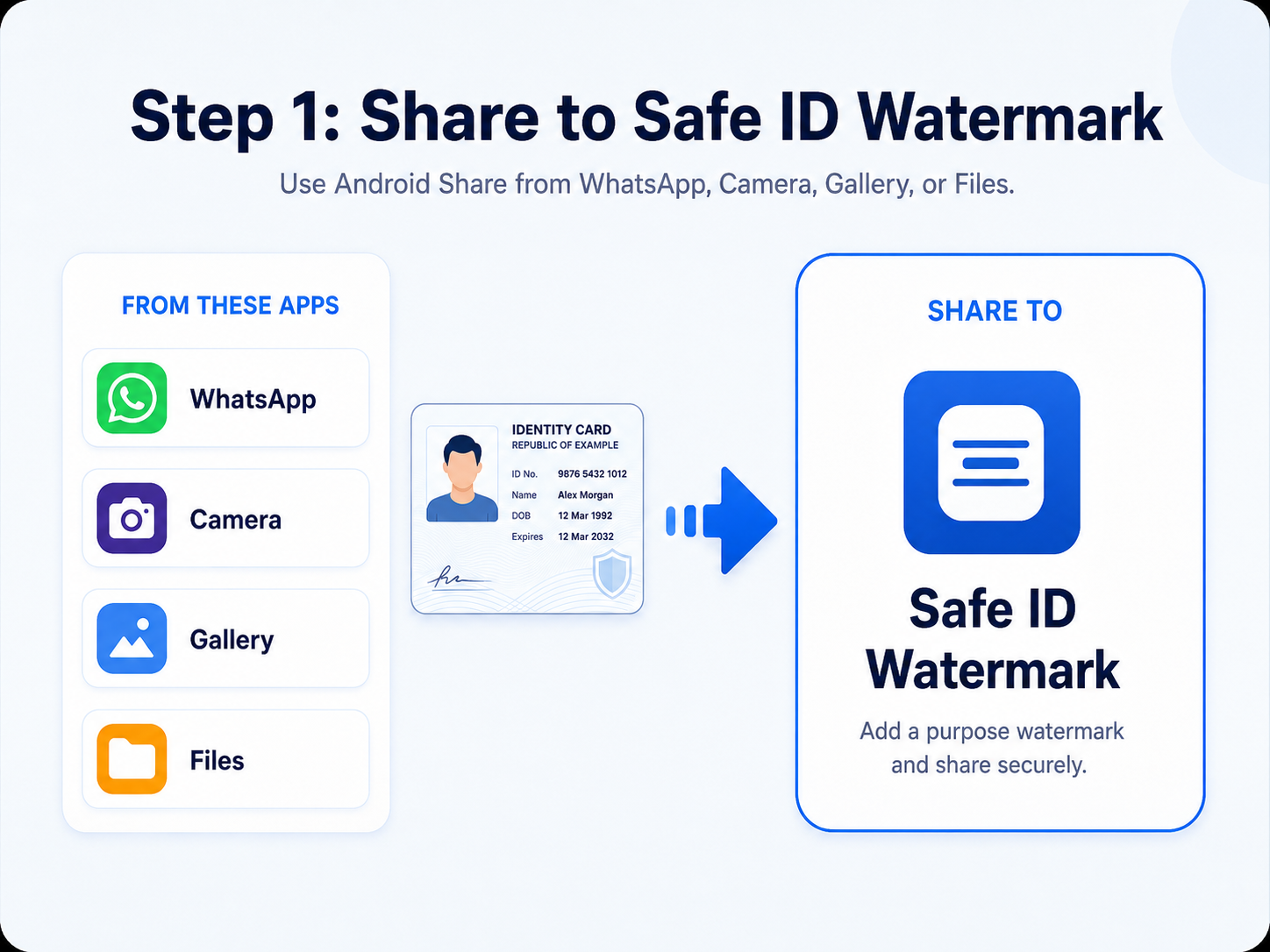
Open your ID image in WhatsApp, Camera, Gallery, Files, or another app. Tap Share, then select Safe ID Watermark.
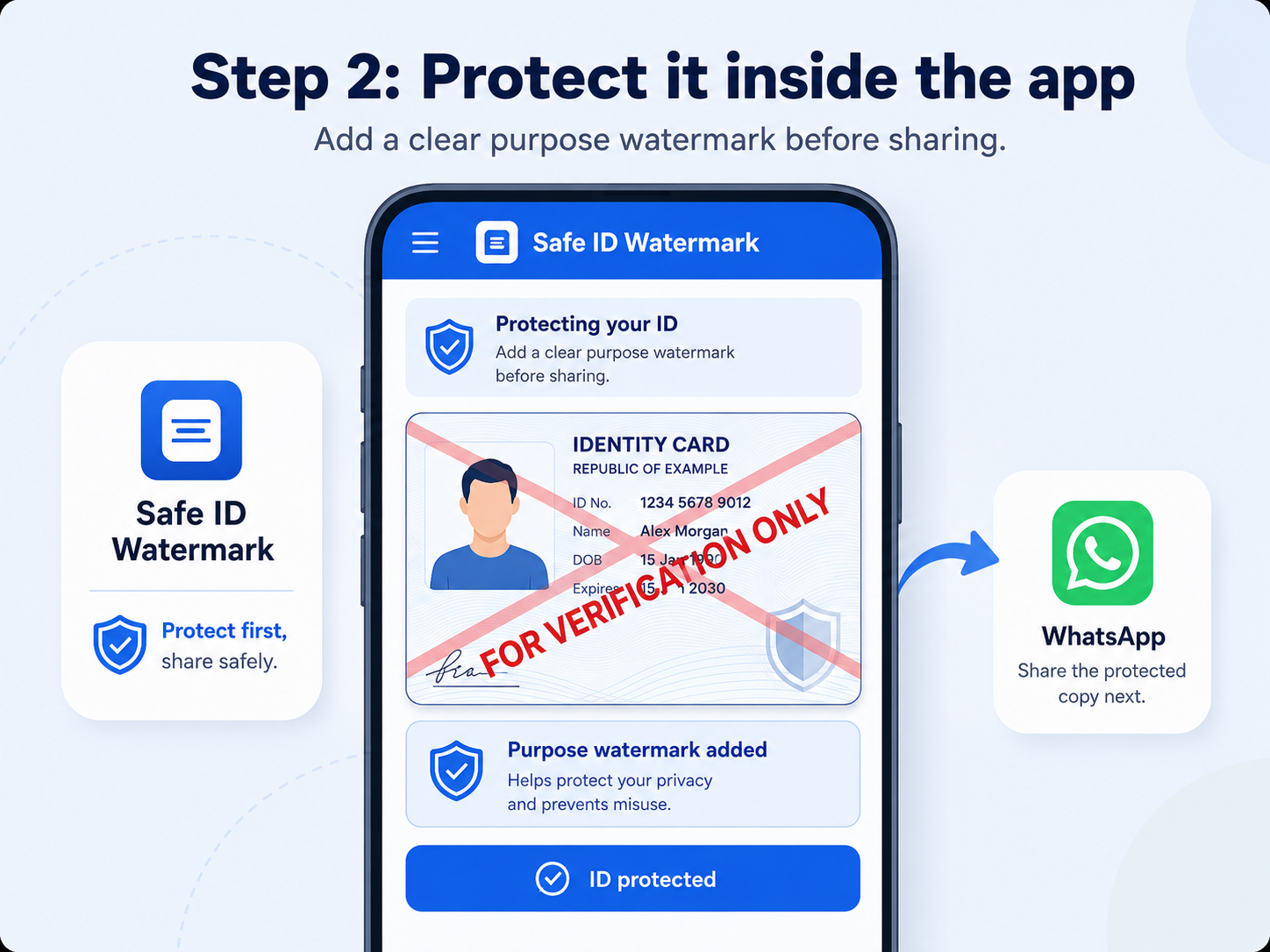
Open an ID image, add a clear purpose watermark, adjust it, and share only the protected copy. The guide below works beautifully on both mobile and desktop.
Each image is shown fully inside its card, so nothing is cut off on smaller screens. Tap or click an image to view it larger.
Open your ID image in WhatsApp, Camera, Gallery, Files, or another app. Tap Share, then select Safe ID Watermark.
The app displays the selected ID and prepares it for a purpose watermark before anything is shared onward.
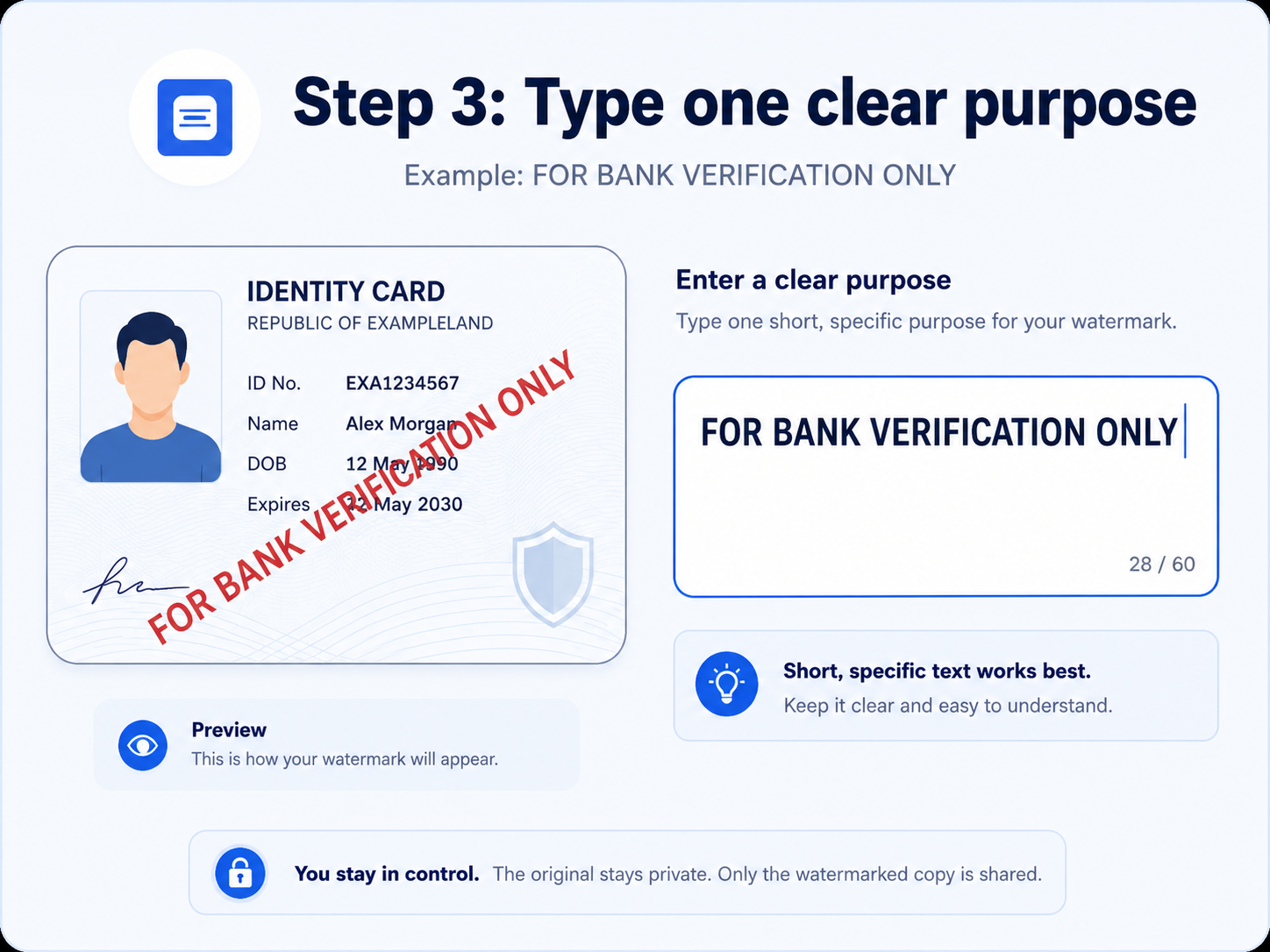
Good watermark text clearly explains why the copy was created, such as FOR BANK VERIFICATION ONLY.
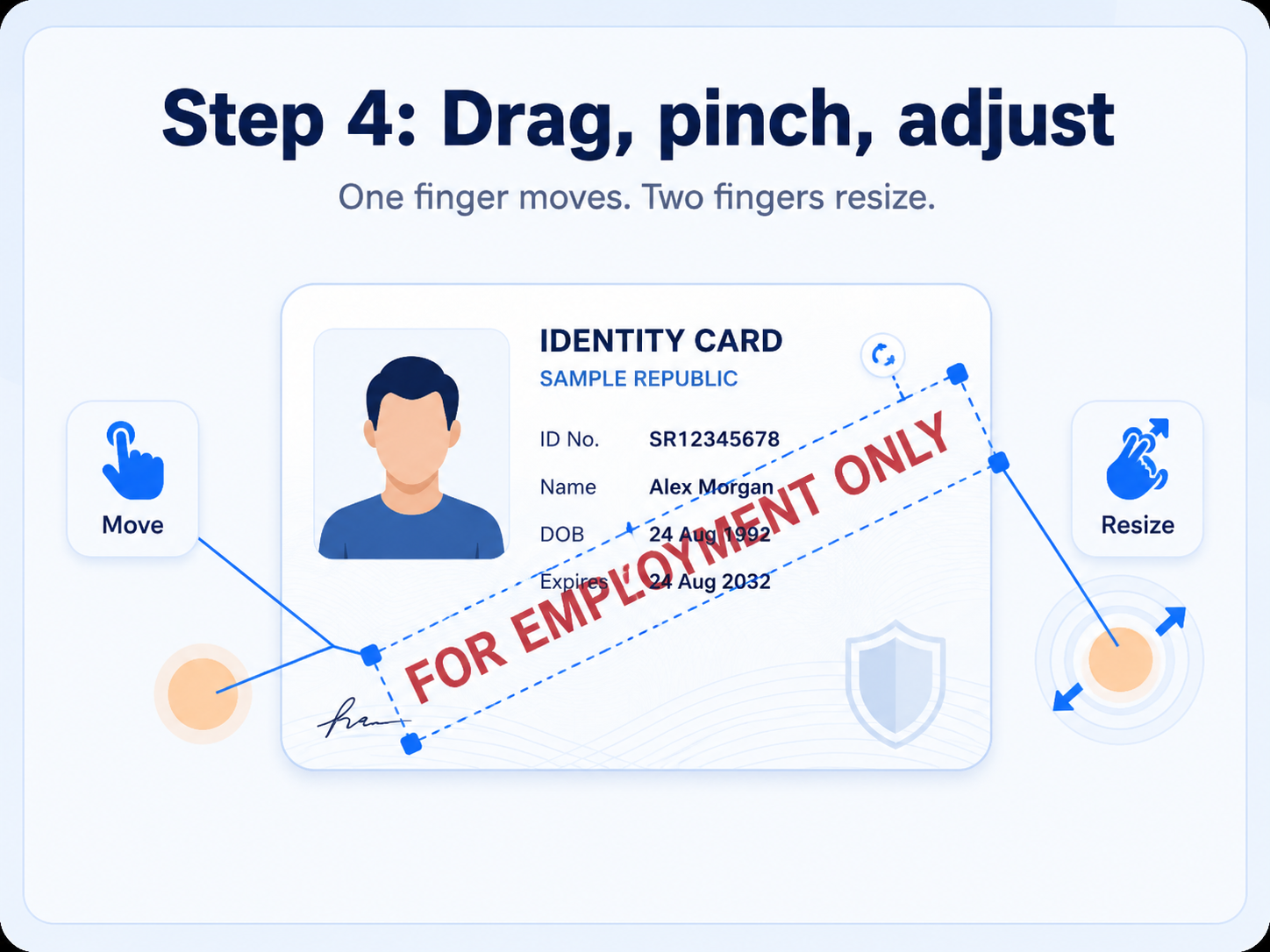
Use one finger to move the watermark. Use two fingers to resize it until the purpose is clearly visible across the important part of the ID.
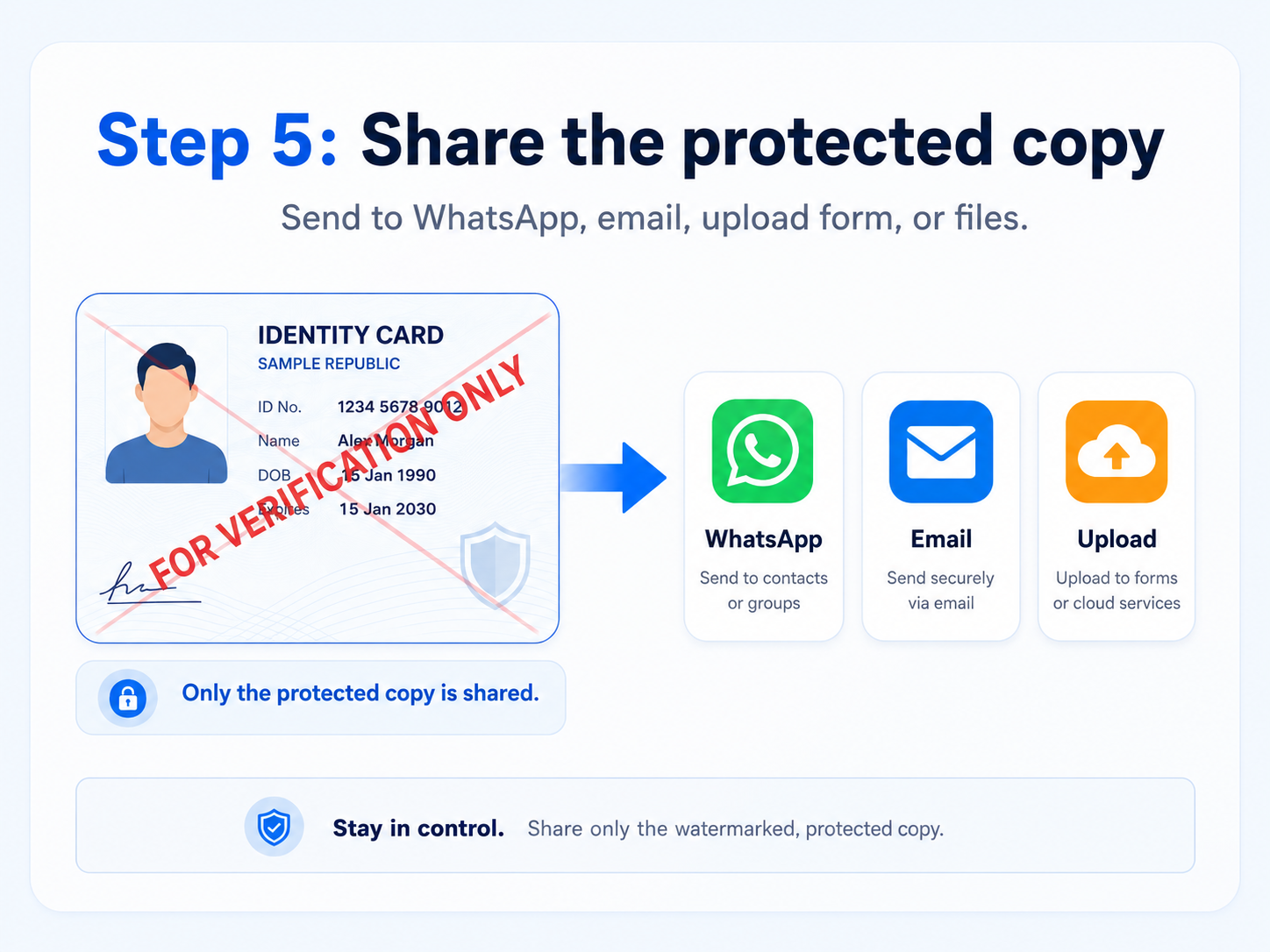
Share the watermarked image through WhatsApp, email, upload forms, cloud storage, or Files. Keep the untouched original private whenever possible.
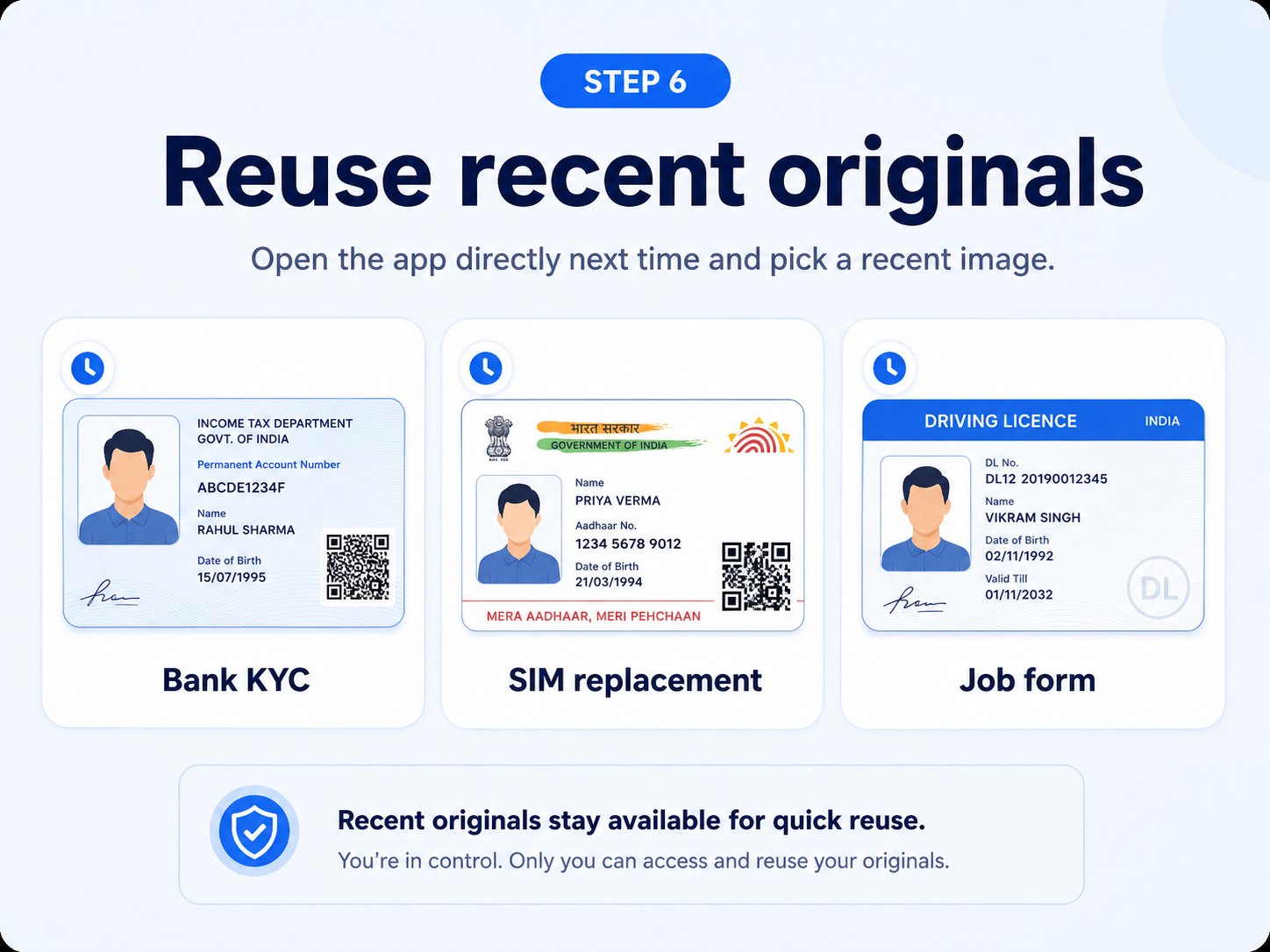
When you need the same document again, open the app directly, choose a recent original, and create a fresh protected copy for the new purpose.
A watermark cannot remove every risk, but these simple habits can make shared copies more controlled and clearly purpose-specific.
State exactly why the copy is being shared and, where useful, include the organisation name.
Use a size and position that remains readable after compression, upload, or screenshotting.
Pause for a moment and confirm the selected image is the protected copy, not the original.
Do not reuse an old purpose watermark for a different bank, employer, account, or request.
Keep the sentence short, direct, and tied to one purpose.